Free Al Office Suite with PDF Editor

Edit Word, Excel, and PPT for FREE.
Read, edit, and convert PDFs with the powerful PDF toolkit.
Microsoft-like interface, easy to use.
Windows • MacOS • Linux • iOS • Android

Catalog
How to Use Rewording Tool in WPS
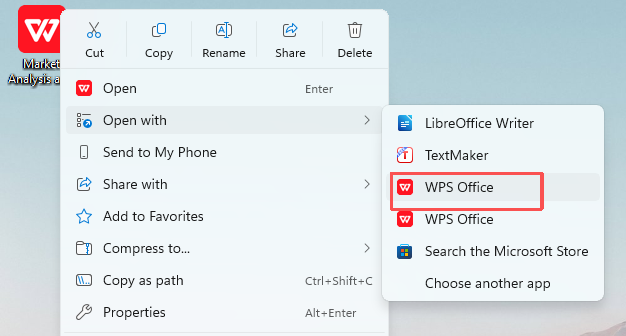
Step 1: Open Your Document with WPS Office
Right-click your target document, hover over "Open with", and select WPS Office to launch the file.
Step 2: Access WPS AI Tools
In the top menu bar, click the WPS AI tab to open the AI-powered editing panel.

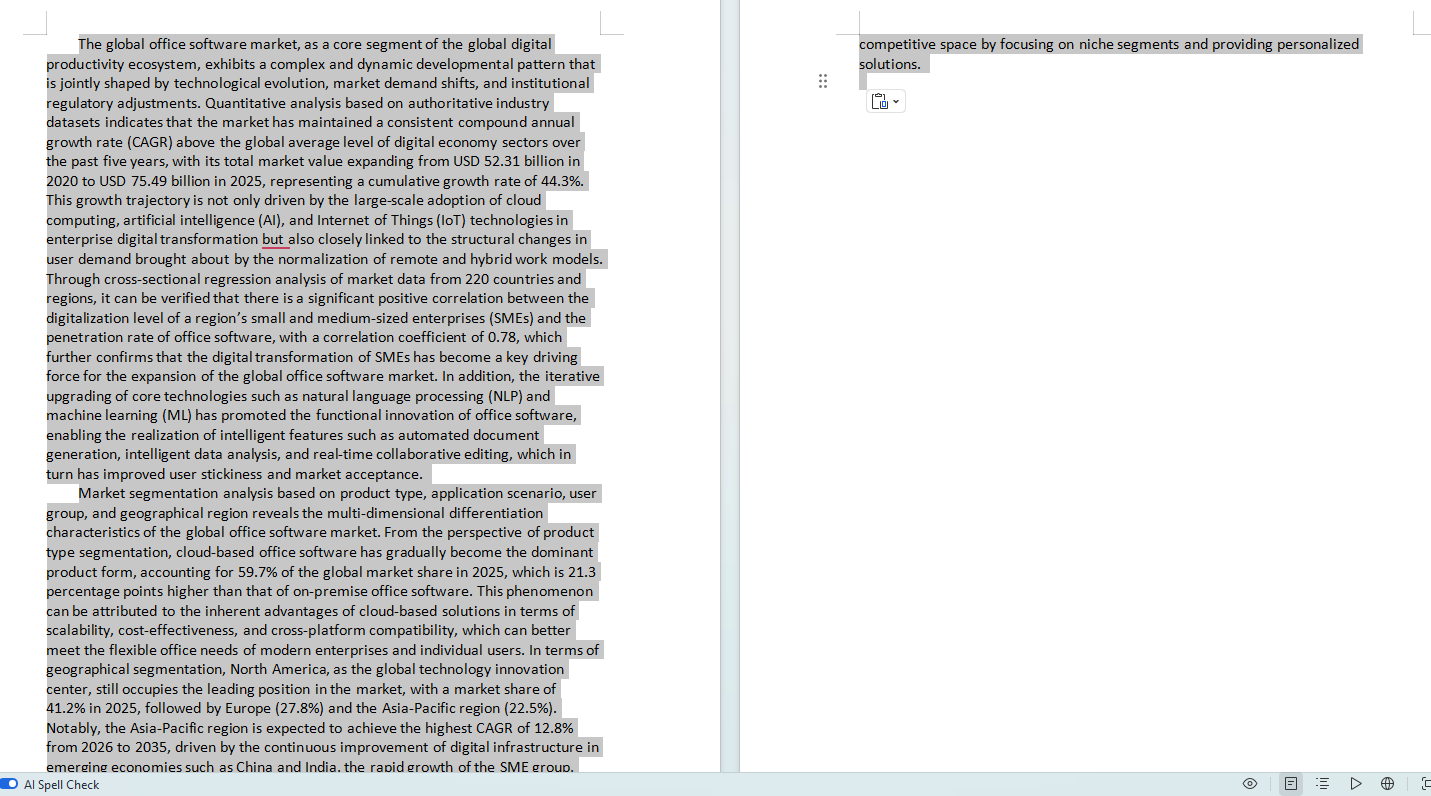
Step 3: Select Text for Rewording
Highlight the full text or specific sections of your document that you want to rephrase.
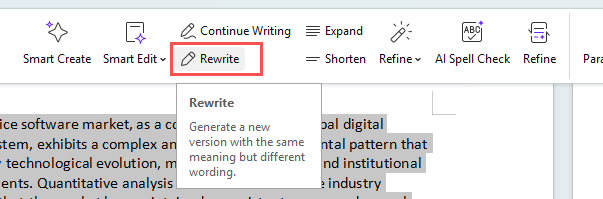
Step 4: Launch the Rewording Tool
In the WPS AI toolbar, click the Rewrite button to generate an alternative version of your text.
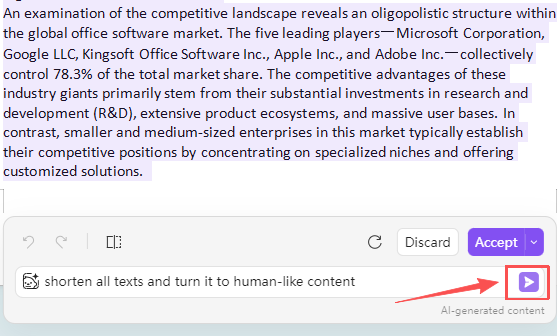
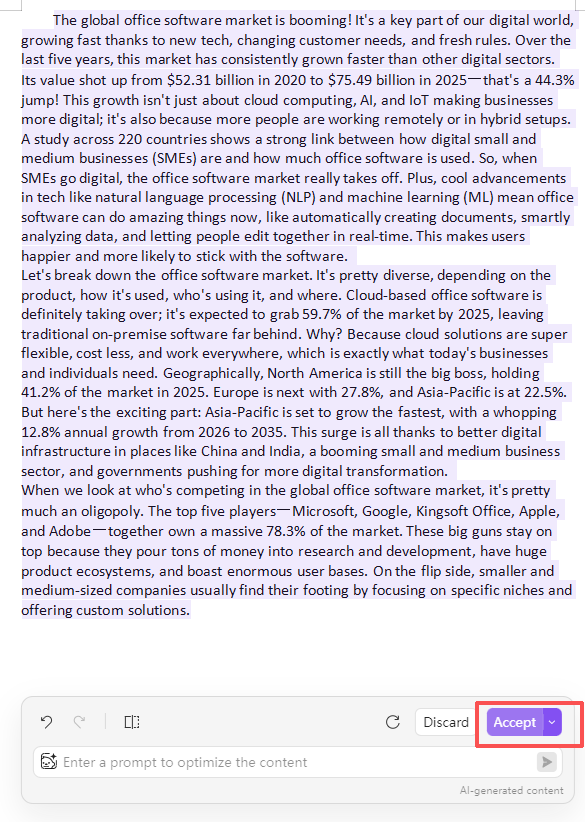
Step 5: Customize and Accept the Result
Enter a prompt (e.g., "shorten all texts and turn it to human-like content") to refine the output, then click Accept to insert the reworded text into your document.
Extra Tips
Tone Adjustment: Use specific prompts (e.g., "make this more formal" or "simplify for a general audience") to align the reworded text with your desired tone and context.
Direct Integration: After rewording, use WPS AI’s "Refine" or "Shorten" tools to further polish the text, then save the updated document directly without leaving the WPS ecosystem.
Why WPS?



15 years of office industry experience, tech lover and copywriter. Follow me for product reviews, comparisons, and recommendations for new apps and software.


