WPS Office

Free All-in-One Office Suite with PDF Editor

correct-icon

Edit Word, Excel, and PPT for FREE.

correct-icon

Read, edit, and convert PDFs with the powerful PDF toolkit.

correct-icon

Microsoft-like interface, easy to use.

Free download

Windows • MacOS • Linux • iOS • Android

banner

How to Apply a Photo Filter in WPS Office

January 14, 2026
2.0K Views

Manually editing images for reports or presentations—such as correcting colors or applying stylistic filters—is time-consuming and disrupts workflow. This common pain point is addressed by the integrated photo filter tool within WPS Office, which streamlines the process directly within your document. The steps below demonstrate how to use it.

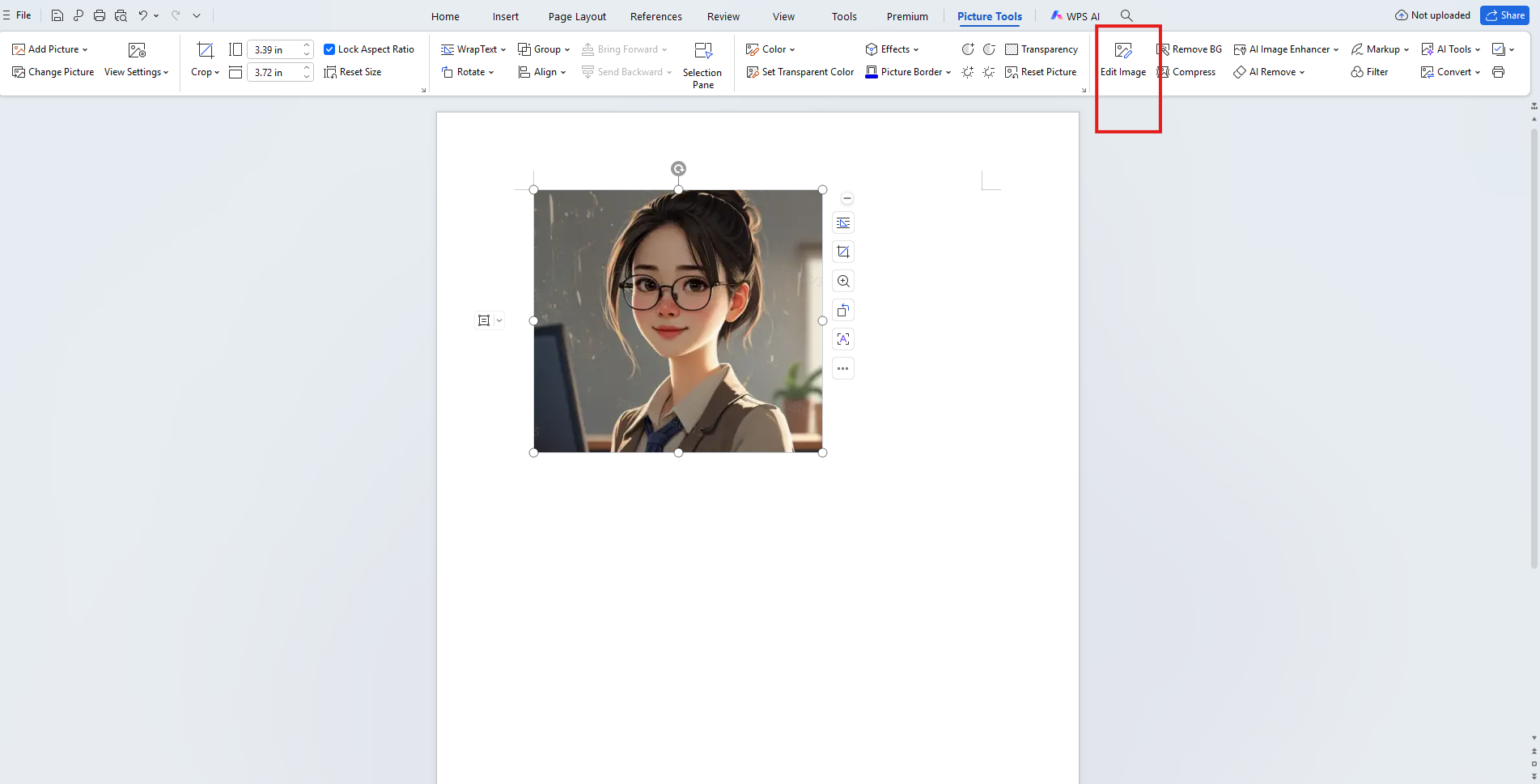
Step1:Open the Image Editor

Select the image in your document. Click the Edit Image button in the Picture Tools ribbon.

Picture Tools ribbon


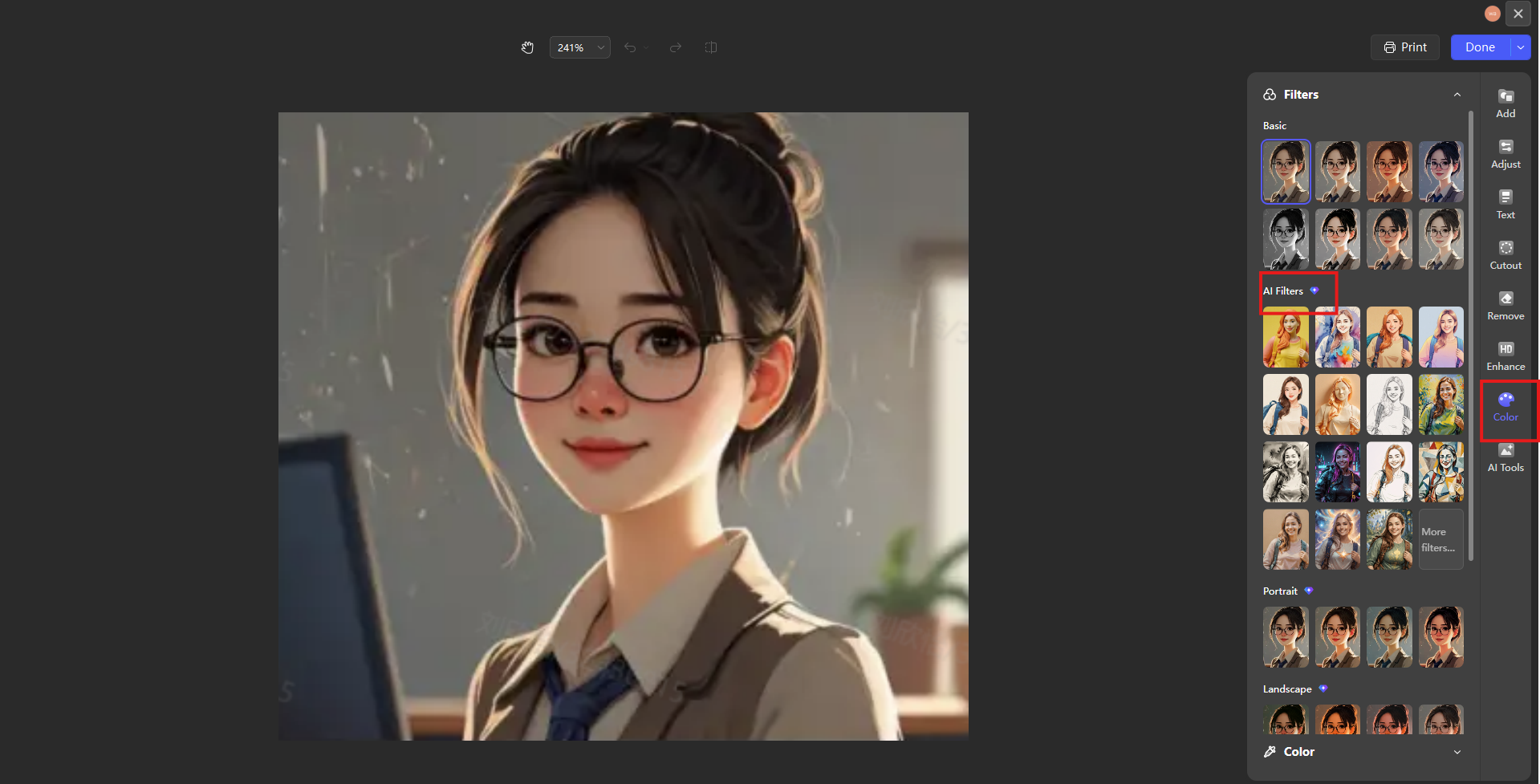
Step2:Navigate to Filters

In the editing panel on the right, click the Color option. This expands to reveal the photo filter section.

photo filter section


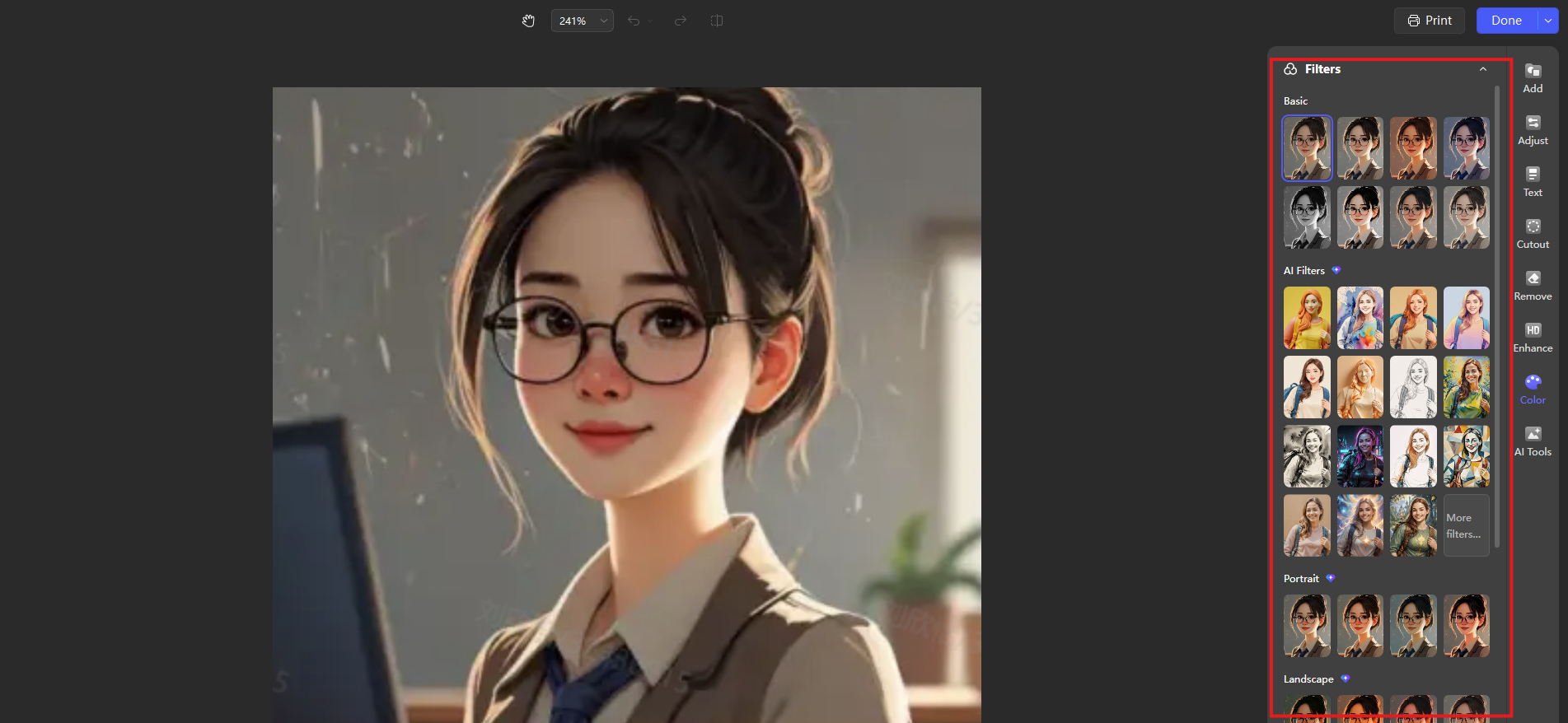
Step3:Select and Apply a Filter

Choose from filter categories such as Basic, AI Filters, Portrait, Landscape, Text, or Food. Click your preferred filter to apply it instantly.

filter categories
filter categories


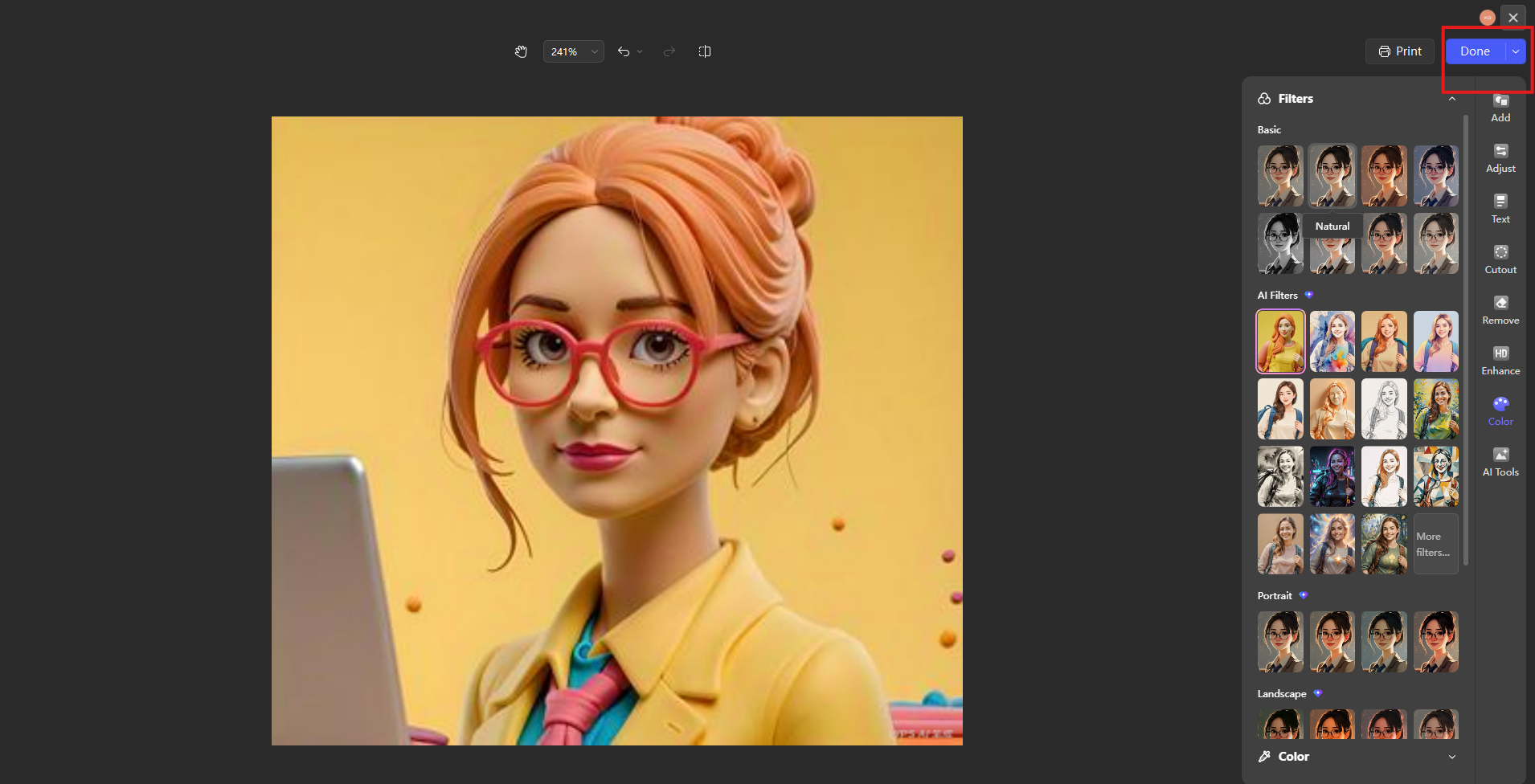
Step4:Save Changes

Once satisfied, click Done at the top of the panel. The filtered image will update directly in your document.

Save Changes
Save Changes

Conclusion
Unlike many office suites that lack native photo editing or require external software, WPS Office integrates a full range of photo filters directly into the document environment, allowing for seamless visual adjustments without leaving your workflow. This eliminates the need for separate applications, file exports, or re-uploads, ensuring that your editing process is integrated, efficient, and fully contained within your original project. This built-in functionality exemplifies WPS Office's commitment to providing a comprehensive, all-in-one productivity solution that addresses real-world document creation needs.

15 years of office industry experience, tech lover and copywriter. Follow me for product reviews, comparisons, and recommendations for new apps and software.