Free All-in-One Office Suite with PDF Editor

Edit Word, Excel, and PPT for FREE.
Read, edit, and convert PDFs with the powerful PDF toolkit.
Microsoft-like interface, easy to use.
Windows • MacOS • Linux • iOS • Android

Catalog
How to Add Fonts in WPS Office Word
Need new fonts for your Word document in WPS? Check the contents of how to insert fonts in WPS Office word.
Download the latest WPS for adding new Fonts
WPS Office is the best alternative to Microsoft 365. The WPS Office Suite lets you easily add new fonts and install version 11.2.0.10443 or newer.


Not sure which version you're on? You can either grab the latest release or take a quick look at your version information.
Head to the WPS Office interface > click Settings above > About WPS Office, and then you can check whether the current version is the latest one.

Option 1: Adding Cloud Fonts
A suitable font can make your document more personalized and attractive, and you can easily add more fonts to your word in a few clicks. Let’s start to master how to add fonts in WPS Writer.
1. Click Home >Fonts>View more Cloud fontsto select fonts to download.

Option 2: install the local font manually.
1. Right-click to copy the font and open My Computer - Local Disk C: C:\Windows\Fonts.
2. Copy the font into the file and restart the WPSOffice after fonts installation.


How to download and install fonts?
In our discussion on how to add fonts to Word, let us see how to download fonts first.
How to download fonts?
Looking for a cool font to spice up your project?
Check out some reputable font sites like
These sites offer a variety of fonts for free (most of the time), and you can effortlessly search by category and type.
Before downloading a font, check out all of its characters. Some fonts only have upper- or lower-case letters or may be missing certain punctuation marks you need.
Another essential thing to check before using a font is its licence.
Some fonts are royalty-free. However, other fonts might be accessible for personal use, so you can't use them in your business's logo or any designs you plan to sell. You might have to pay to use a font for commercial purposes.
Click the download button on the font's page to download a font. The font will usually save to your computer in ZIP format, which includes the font itself and sometimes a Readme or Info file. You can choose the font format you want to download on some sites.
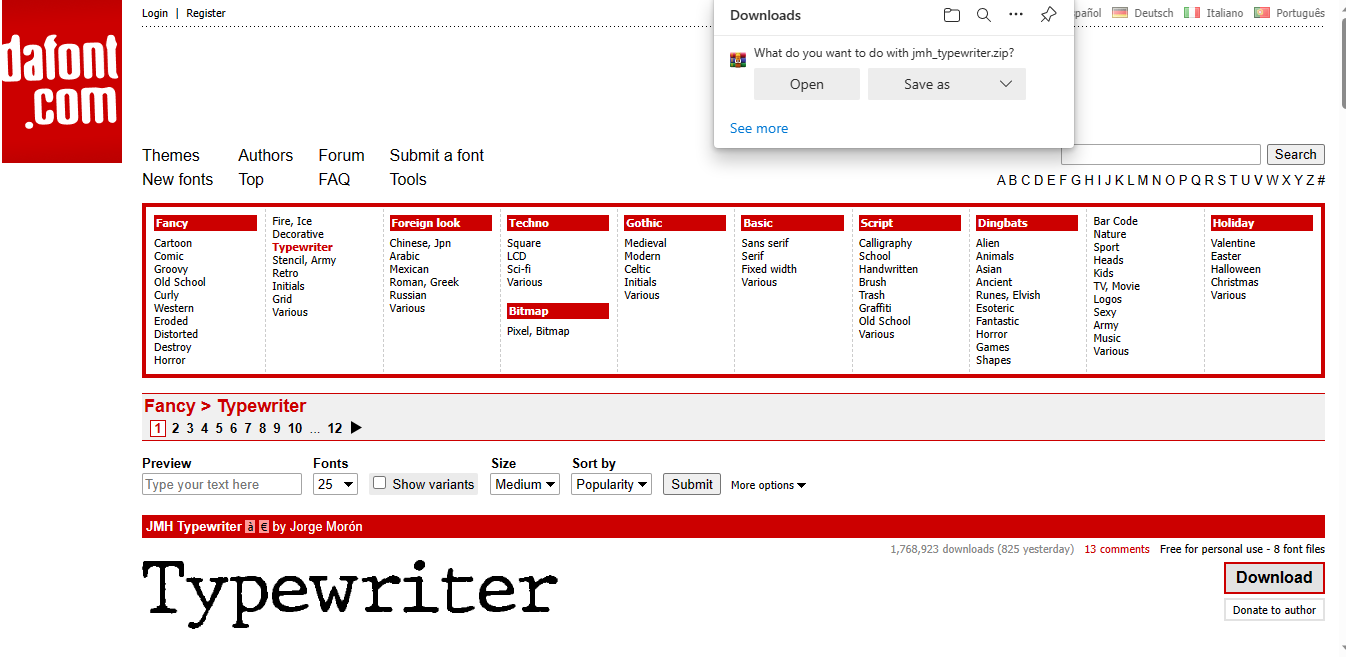
If you're using Windows, you can install True Type (.TTF or . TTC) fonts containing both on-screen and printing fonts in a single file. You can also use OpenType (.OTF) fonts, similar to True Type but with more advanced features like alternate characters and small caps.
Finally, you can install PostScript (.PFB and . PFM) fonts, which are older and less common but can still be used if you have both.PFB and . PFM files.
How to install fonts?
A step-by-step guide to installing fonts on Windows
Step 1: Download the font you wish to install. Most fonts come in compressed, zipped folders. Extract the folder to your PC, by selecting "Extract All" from the top of the File Explorer window.

Step 2: go to the Windows Settings menu and click on "Personalization" from the left-hand menu. From there, select "Fonts" from the list of options.

Step 3: Locate the folder where you extracted the font files. Within that folder, select the TrueType font files (ttf) and drag them over to the dotted rectangle on the Fonts screen in Windows Settings.
A Step-by-Step Guide to Installing Fonts on Mac
To install a font, double-click the font file in the Finder.
In the preview pane, click "Install."
Once installed, the font will appear in the Font Book app and can be used in any of your apps.
If you want the font to be available to all user accounts on your Mac, you can change the default install location in the Font Book settings.
To download or activate fonts:
Open the Font Book app from your Applications folder.
Any fonts that are deactivated or haven't been downloaded will appear dimmed in Font Book.
Select a dimmed font to download a font and click "Edit" then "Download."
To activate a deactivated font, select it and click "Edit" then "Activate" (or "Enable").
If you want to deactivate a font you don't need, you can do so in Font Book.
That's it! Now you can easily install and manage your fonts on your Mac.
A Step-by-Step Guide to Installing Fonts on iPad
Open the App Store app on your iPad.
Search for the font you want.
Download and install the app onto your iPad.
Open the app to install the fonts onto your iPad.
To manage fonts:
Go to your iPad's Settings app.
Tap "General."
Scroll down and tap "Fonts."
You will see a list of fonts installed on your iPad. You can enable or disable any of them by toggling the switch next to each font.
A Step-by-Step Guide to Installing Fonts on Android
This will guide you to install fonts using iFont App.
Install the iFont app from the Google Play Store.
Go to Settings on your device.
Scroll down and tap on "Security".
Use the search bar to find "Unknown Sources".
Tap on "Install unknown apps" and look for "iFont".
Press the toggle button next to iFont to "Allow from this source".
Open the iFont app.
Tap the font you want to install.
Tap "Download" on the front page.
Tap "Set" and follow the on-screen instructions to install the font.
After the installation, open Settings on your Android device.
Head to "Display" and go to "Font" > "Font Style".
Select the font from the list of available fonts.
Frequently Asked Questions
How to uninstall the installed fonts?
Open File Explorer on your computer.
In the address bar, type or paste in the path: C:\Windows\Fonts, and hit Enter. This will take you to the Windows Fonts folder.
Find the font you want to remove from the folder.
Select the font file you want to delete.
Right-click the font file and select "Delete."
Confirm the deletion. The font will be permanently removed from your computer.
How to verify that the font has been installed correctly?
Press the Windows key+Q on your keyboard.
Type "fonts" in the search box that appears.
Hit Enter on your keyboard.
The Font Control Panel will open.
A list of fonts installed on your computer will be shown.
Where can I download Fonts for Microsoft Word?
Visit a trusted font website like dafont.com, fontspace.com, fontsquirrel.com, or 1001freefonts.com.
Search and click on the font you want and download it. Remember to only download fonts from trusted sources and avoid EXE files that may contain viruses.
WPS Office: The Free Office Software with Rich Fonts



15 years of office industry experience, tech lover and copywriter. Follow me for product reviews, comparisons, and recommendations for new apps and software.


