Free Al Office Suite with PDF Editor

Edit Word, Excel, and PPT for FREE.
Read, edit, and convert PDFs with the powerful PDF toolkit.
Microsoft-like interface, easy to use.
Windows • MacOS • Linux • iOS • Android

Catalog
How to Watermark Pictures with WPS Photos
In professional and academic environments, sharing original research, internal drafts, or creative assets carries the risk of unauthorized distribution. Traditional methods often involve switching to heavy photo-editing software, which disrupts focus and slows down the documentation process. Efficiently watermarking pictures ensures that your work remains identifiable and protected while maintaining a professional appearance in reports and presentations.
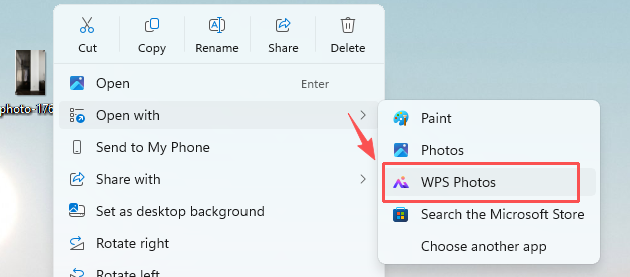
Step 1: Open the image with WPS Photos.
Right-click your image file, select Open with from the context menu, and click WPS Photos.
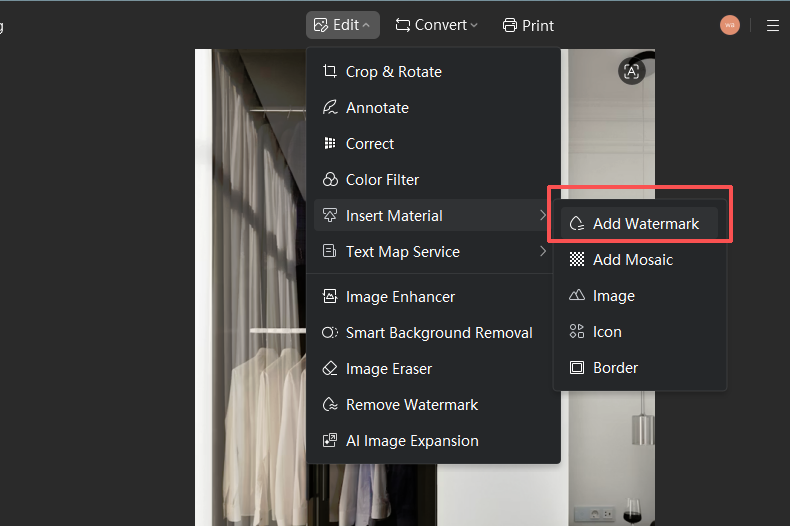
Step 2: Access the Watermark tool.
Click the Edit dropdown menu in the top toolbar, hover over Insert Material, and select Add Watermark.
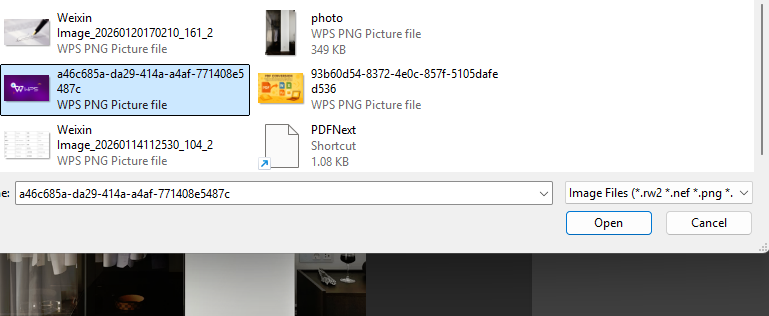
Step 3: Select your watermark type
In the right-side Watermark panel, click the Add Image icon, select your logo or custom watermark image from the file browser, and click "Open".

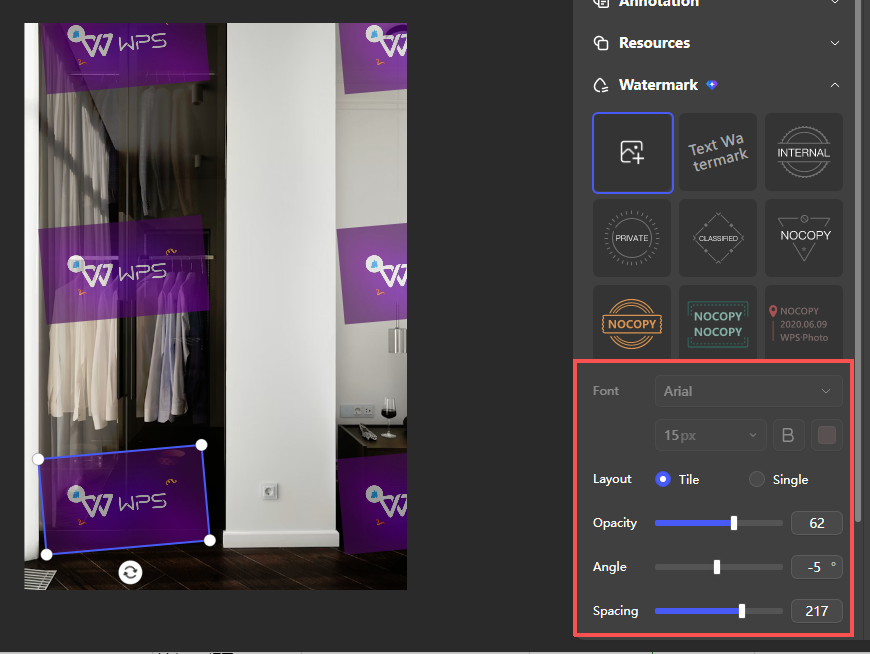
Fine-tune your image watermark using the right-side controls: adjust opacity, angle, spacing, and layout (Tile/Single) to achieve the desired coverage and subtlety.
Switch to the Text Watermark tab, enter your custom text, and adjust font, size, opacity, angle, and spacing for optimal readability and unobtrusiveness.
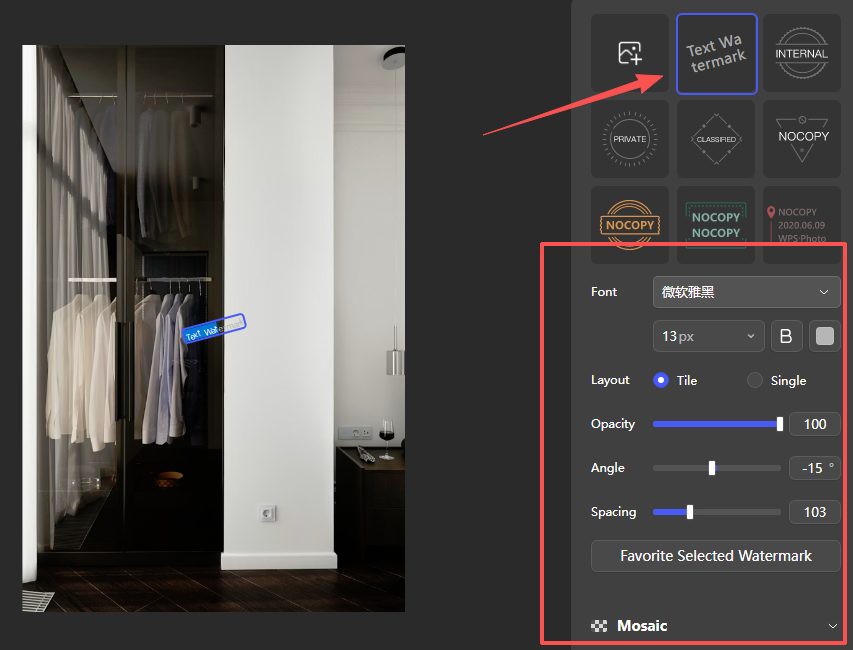
enter your custom text
Choose from preset watermark options (e.g., "NOCOPY", "PRIVATE") in the Watermark panel to quickly apply a standardized protective mark to your image.
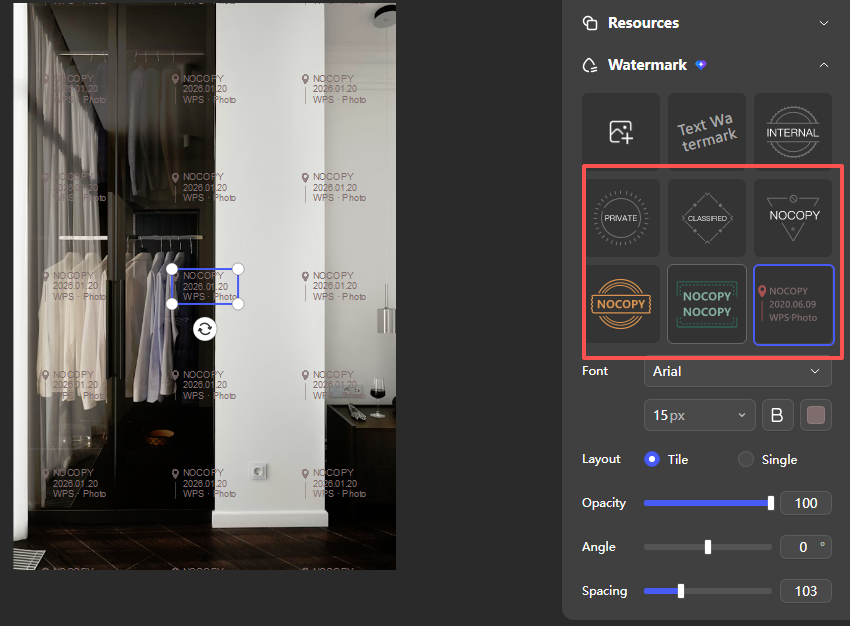
Choose from preset watermark options
Step 4: Save your Image
Click "save" to save your image.

Extra Tips
Batch Processing: For high-volume tasks, you can apply consistent watermarking styles across multiple images to maintain visual uniformity.
Direct Document Integration: Once edited, the watermarked image can be saved directly and inserted into WPS Writer or Presentation, eliminating the need for intermediate file exports.
Why Use WPS Photos?
Unlike standalone watermarking tools that require file uploads or subscriptions, WPS Photos lets you complete the entire watermarking workflow offline within the WPS ecosystem, ensuring data security and seamless integration with your existing documents.



15 years of office industry experience, tech lover and copywriter. Follow me for product reviews, comparisons, and recommendations for new apps and software.


