Free All-in-One Office Suite with PDF Editor

Edit Word, Excel, and PPT for FREE.
Read, edit, and convert PDFs with the powerful PDF toolkit.
Microsoft-like interface, easy to use.
Windows • MacOS • Linux • iOS • Android

Catalog
Shorten Paragraph: How to Condense Text with WPS AI
Office users and students often need to refine paragraphs for clarity, length limits, or formal tone. Manually rewriting sentences to be shorter can be time-consuming and may unintentionally change the meaning. A built-in tool to shorten paragraph text helps reduce redundancy and improve readability without rewriting from scratch.
Step 1: Prepare Your Text
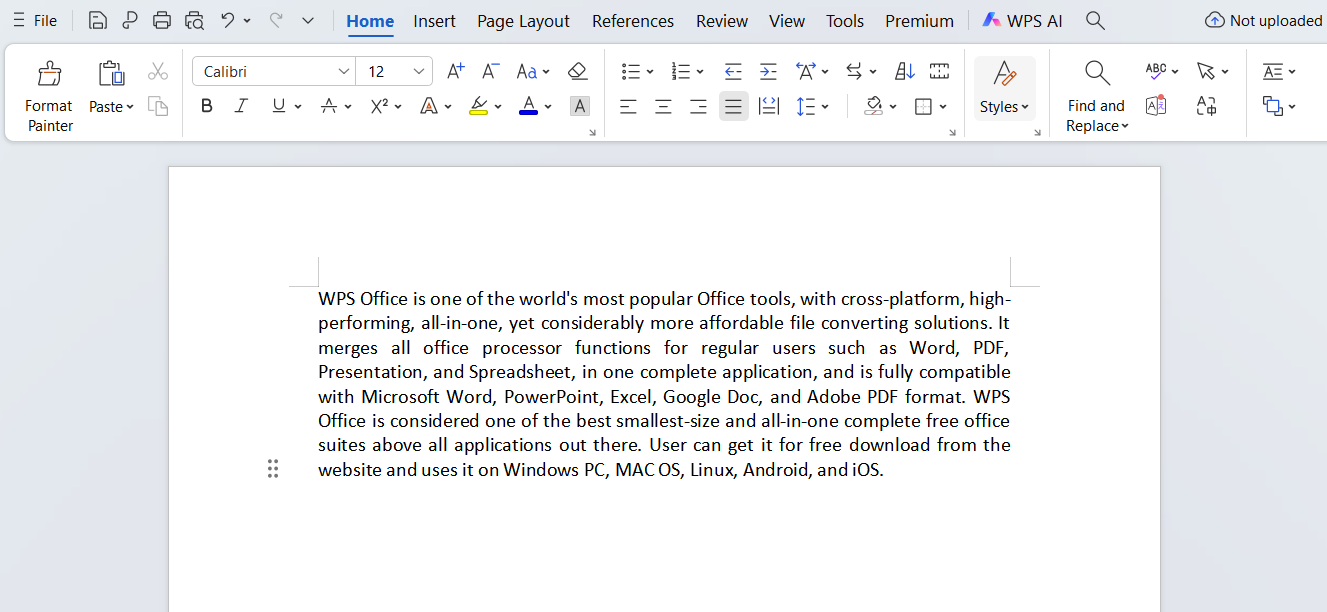
Open your document in WPS and select the paragraph you want to shorten.
Step 2: Access WPS AI Tools
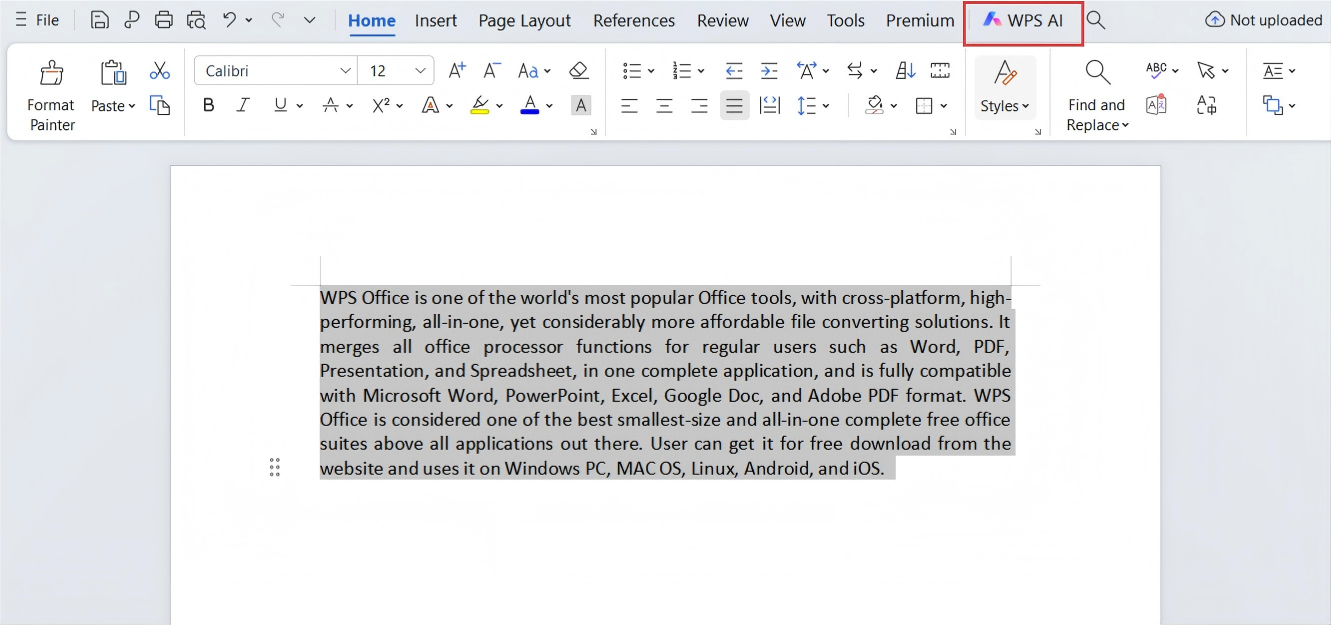
In the top menu bar, click the WPS AI tab to open the AI-powered editing panel.
Step 3: Choose Smart Edit
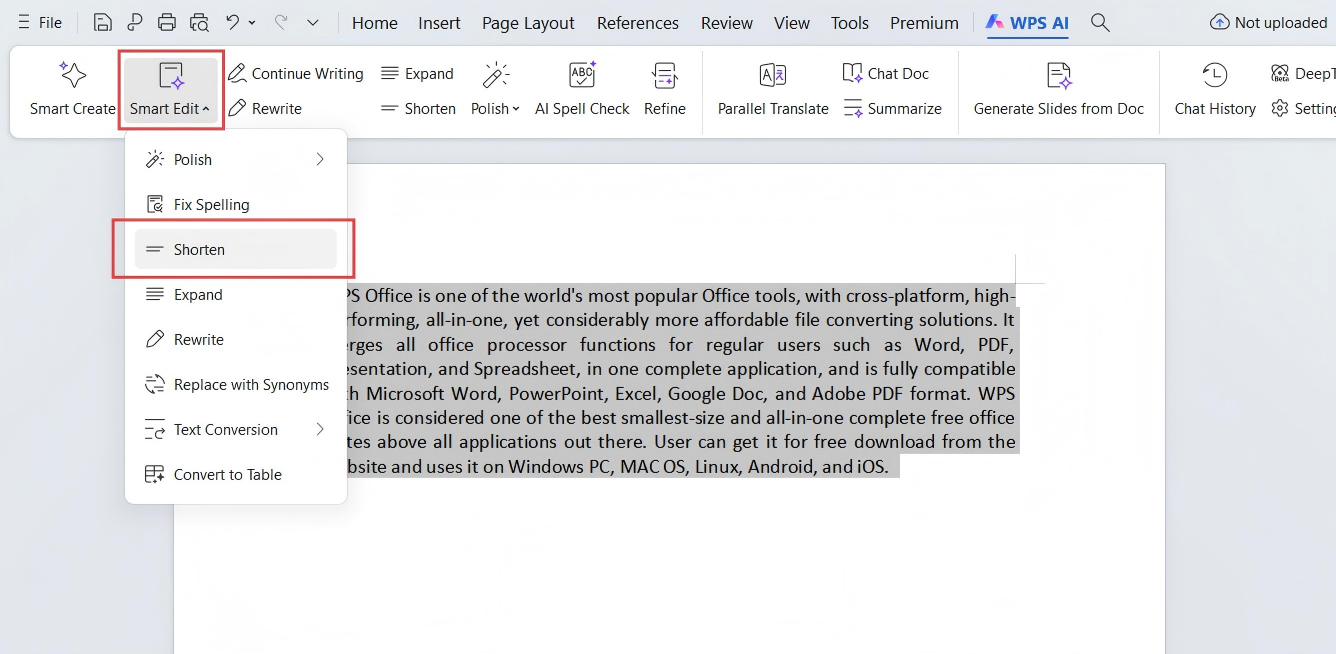
In Smart Edit, select Shorten; the AI will generate a condensed version of the selected paragraph.
Step 4: Review and Accept the Result
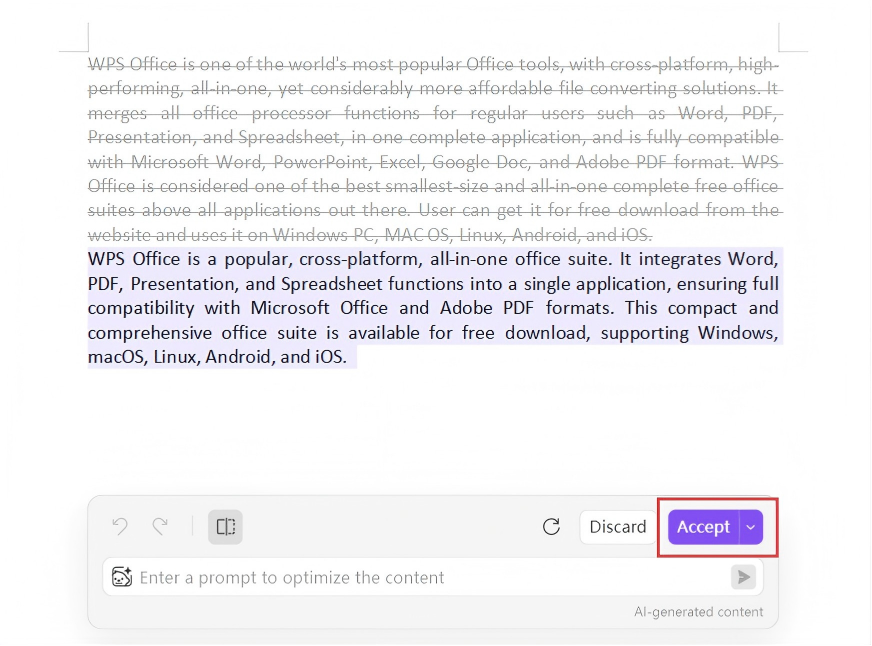
Review the shorten version and click Accept to insert it into the document.
Why WPS?
Unlike external rewriting tools that require copying content out of context, WPS allows users to shorten paragraph content directly within the document through Smart Edit. The condensed text can be reviewed and inserted in place, preserving document structure and writing intent.
Also Read:
- 1. How to remove paragraph marks in WPS Writer
- 2. How to replace "space” with "paragraph mark”
- 3. Screenshot to Text: Convert Images into Editable Text with WPS
- 4. Edit Text in Image: Modify Embedded Text Directly with WPS
- 5. How can we change the spacing before and after a paragraph in WPS Writer
- 6. Show or hide format marks and paragraph layout buttons



15 years of office industry experience, tech lover and copywriter. Follow me for product reviews, comparisons, and recommendations for new apps and software.


